




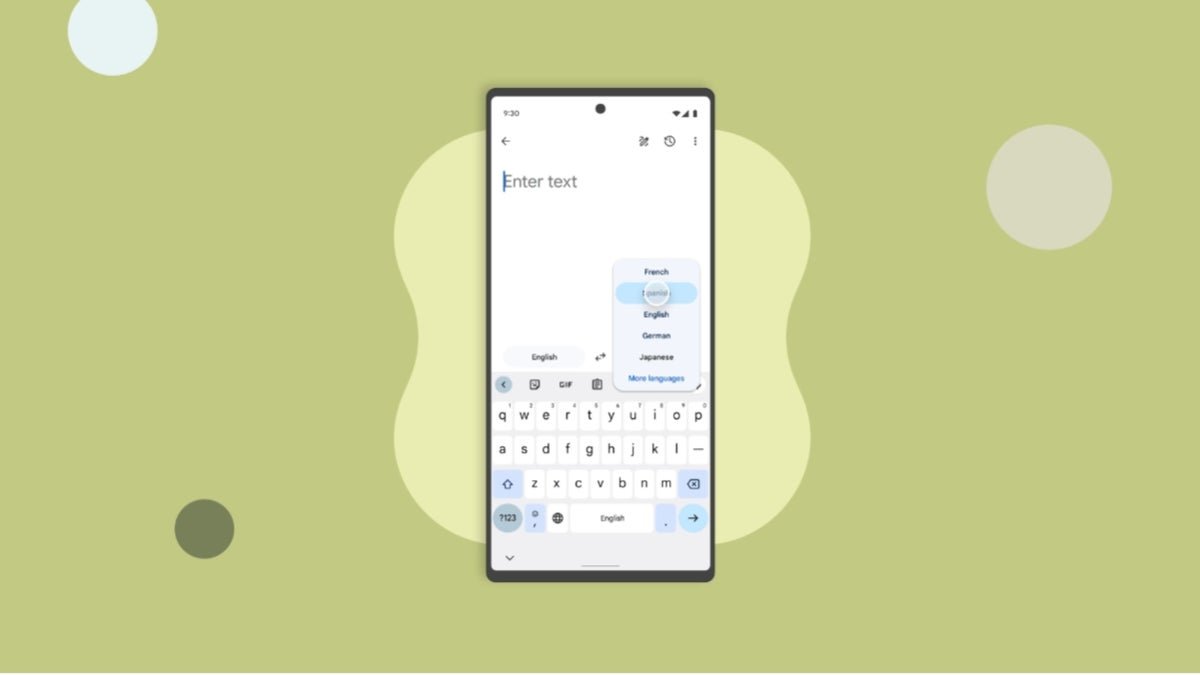
Google Translate is one of those apps that comes in handy often. Whether you are in a foreign country and translating the menu at a restaurant, or sitting in your office reading a report published in a language that you don’t speak, the Google Translate app will make the world smaller. The Google Translate app launched in 2011 and by late last year it had 1 billion monthly active users worldwide. Between the app, Google Search, and Google Lens, more than one trillion words are translated each month.
Google Translate could soon have a new feature that makes it easier to switch between languages
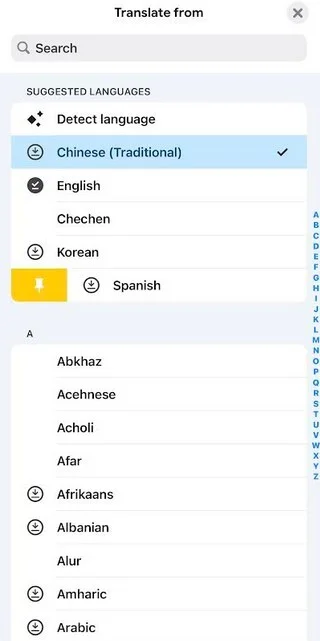
An interesting new feature is coming to version 10.8.48.878519627.2 of the app that allows Google Translate users to pin their often used languages to the language selection page. This allows a Google Translate user to have as many as 10 language options at his/her fingertips, ready to be selected in a heartbeat. This saves the user some precious time when on the go.
There is a list called “Recent languages” on the app that will list nine recently used languages at the top of the screen. But if you add another language taking you above nine, one will be removed from the list. With the new “Pinned languages” section, which is above the “Recent languages” list, up to 10 languages are permanently placed on the screen.
This new feature might not change the world, but for those who need to switch between languages constantly, the “Pinned languages” section will make it easier to switch between multiple languages. If a Google Translate user is visiting a country that uses more than one language while speaking, it is so much easier to use the Pinned languages section to select a language and switch.
How to use the Pinned languages list
You can choose which languages you want pinned by opening the Google Translate app. Tap the button that is on the left that shows the language you are translating from. Under the heading Recent languages, select one and swipe to the right. That will reveal a pin icon to the left of the language name. Tap the pin icon, and that selection is pinned in the app. To remove a pin, follow the directions and if a selection has already been pinned, you’ll see an unpin icon to the left of the language name. Tap it to remove the pin.